
Calendar and lua Colabora
Meeting minutes ready from the calendar event
After the meeting, someone opens a blank document, copies the list of who was there, and tries to remember what was decided. At lua.email, the minutes are born in the event itself: one click creates the document in Drive, with the title, date, attendees, and agenda already filled in, and colleagues write in it together. The outside customer gets, if you like, a read-only link.
Signing up is online and activation is automatic: pay by PIX and the account is ready in minutes for you to activate your domain. For questions, we answer on WhatsApp.
- lua Colabora included on all plans
- Colleagues edit, guests only read
- .docx document in the Minutes folder in Drive
How to generate the minutes, in 3 steps
Schedule the meeting on the calendar
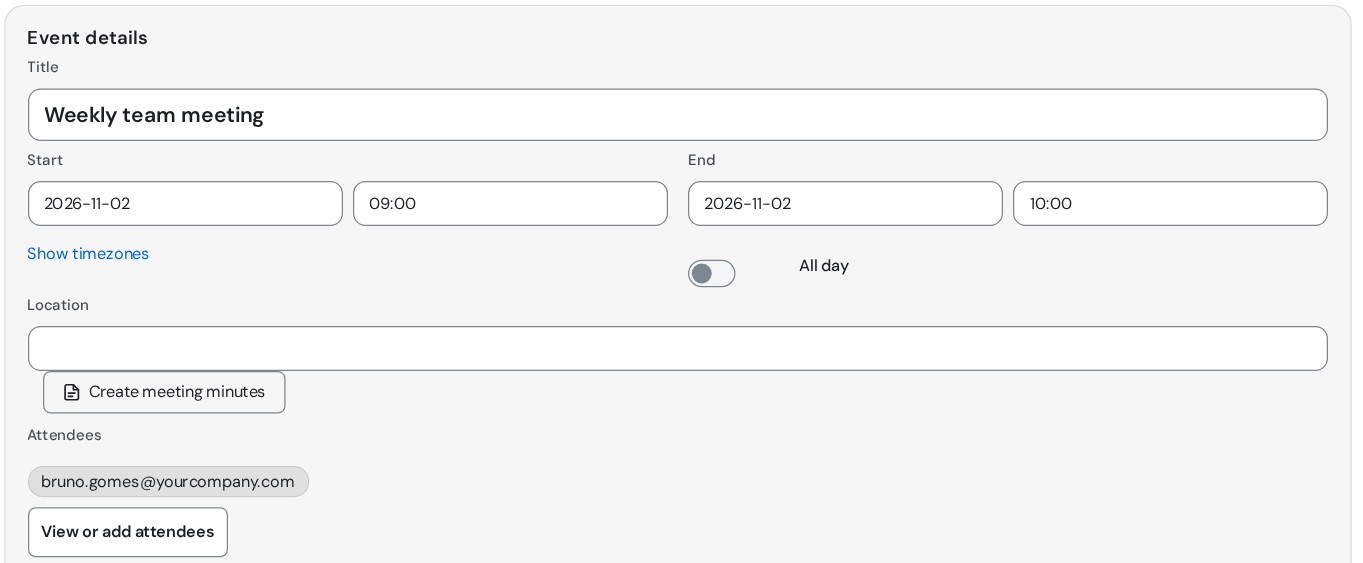
Create the event in webmail with title, day, time, location, and the agenda in the description. Invite your colleagues, and the customer too, if they will take part.
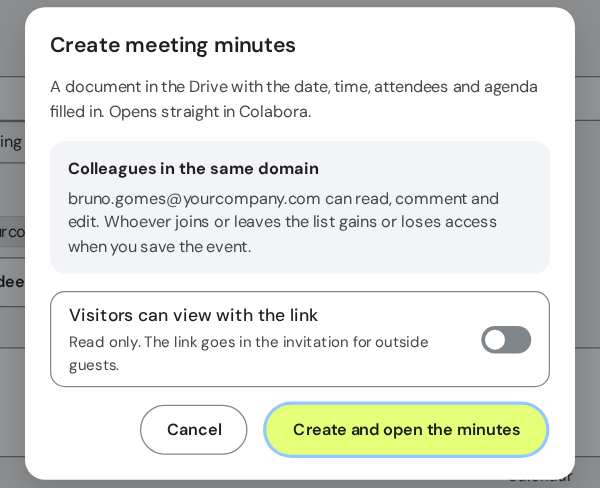
Click Create meeting minutes
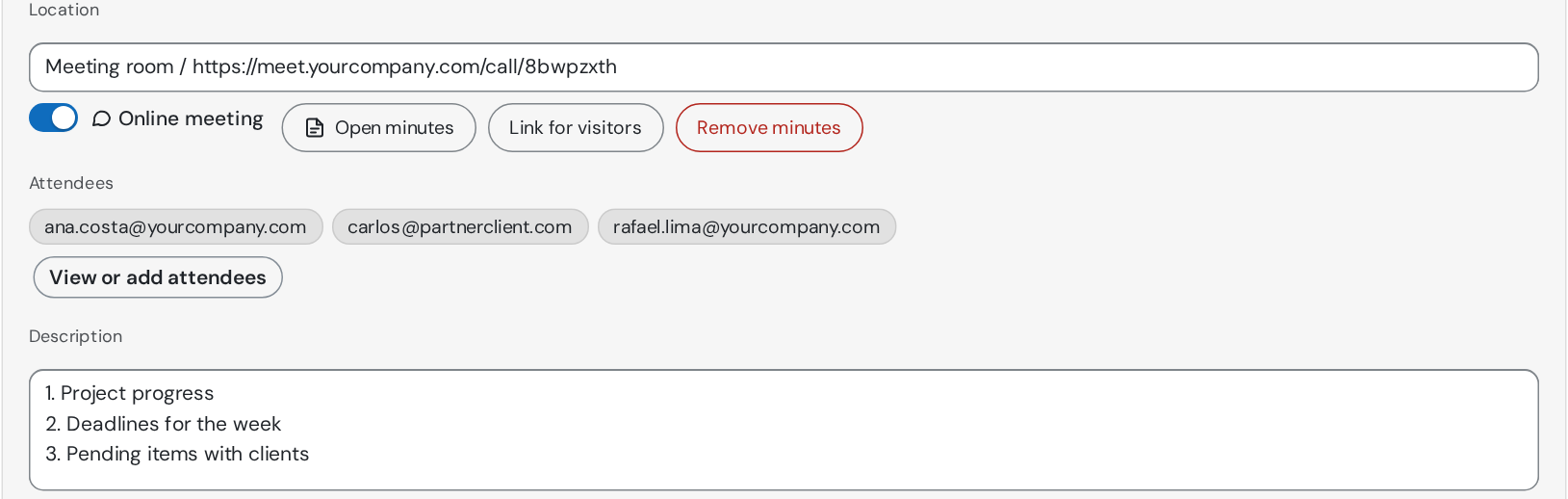
The button sits next to Online meeting. The panel shows the colleagues on the same domain who will be able to read, comment, and edit. If you want, turn on the guest link and set a password and expiration.
Save the event and open the minutes
The document is created in Minutes, in your Drive, and opens in Colabora, in the browser. The links go at the end of the event description, and the button becomes Open minutes.
The full step by step is in the webmail manual.
An example: the weekly team meeting
Every Tuesday at 9 AM, Juliana's team reviews the projects. Here's how the minutes go along with the meeting.
On Monday, when scheduling
Juliana creates the event, invites Rafael and Ana, turns on Online meeting, and writes the agenda in the description: project progress, deadlines for the week, and open items with customers. Before saving, she clicks Create meeting minutes.
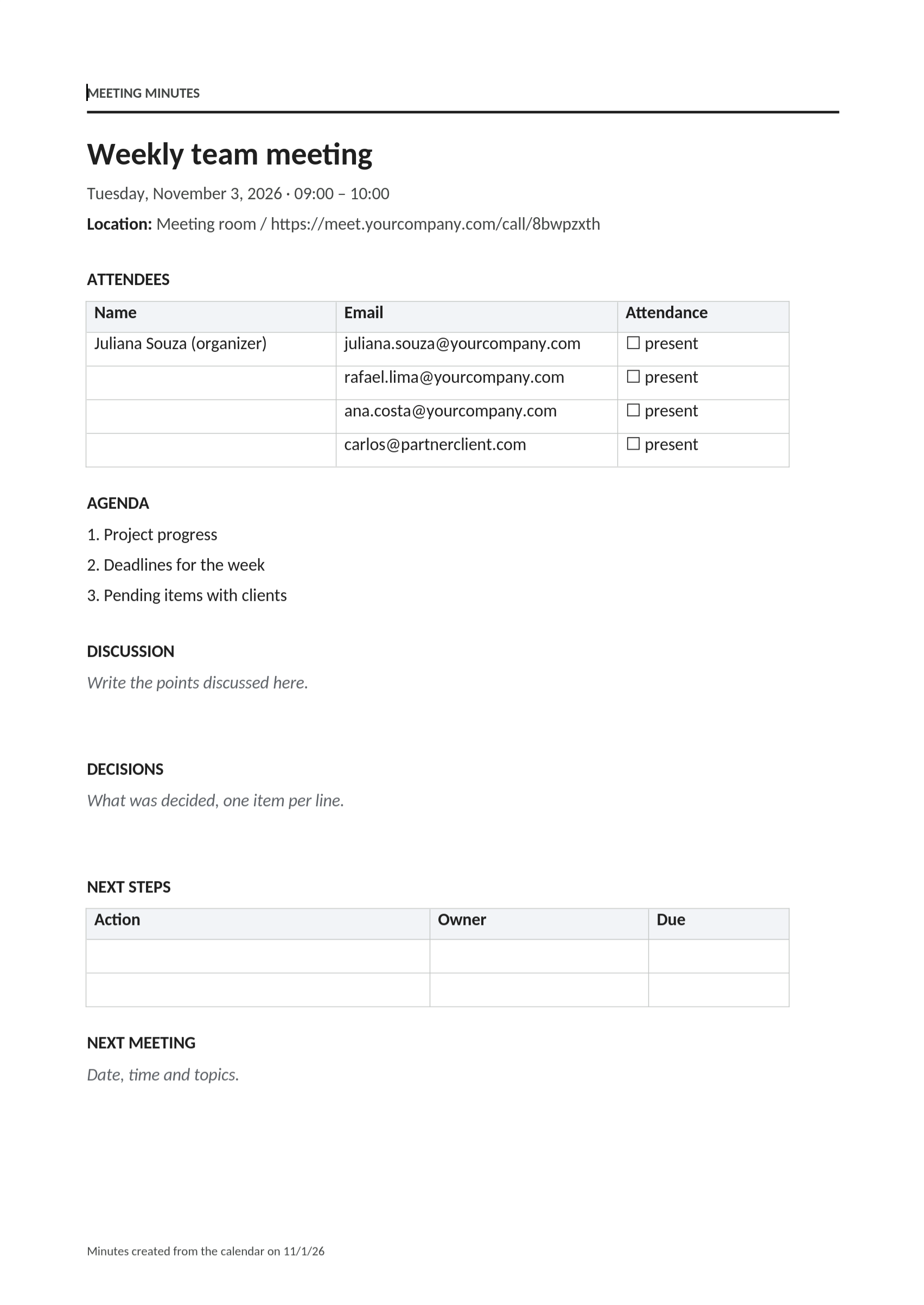
The document is born already filled in
The minutes include the title, the date written out, the location, the list of attendees with a column to mark attendance, and the agenda. At the bottom are spaces for Discussion, Decisions, Next steps (action, owner, and deadline), and Next meeting.
During the meeting
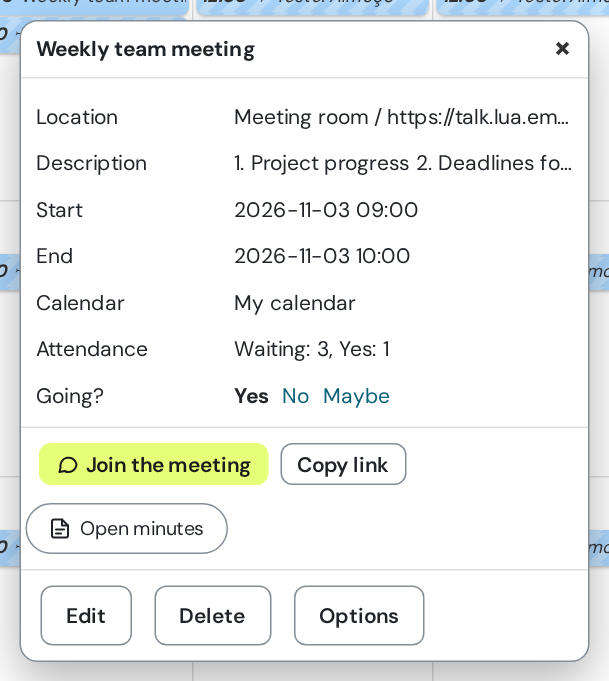
Everyone opens the minutes with the Open minutes button, in the event or in the preview, and writes from their own computer at the same time as the others. Rafael records the decisions, Ana notes the deadlines, and Juliana marks who was present.
For the outside customer
Carlos, from a partner company, follows only part of the topic. Juliana turned on the guest link, with a password and expiration on November 10, 2026, and sent the password on WhatsApp. He reads the minutes but can't change them.
If something changes
The meeting moved to Wednesday and Ana came off the list? Just adjust the event and save: the file is renamed, the minutes date is corrected, and Ana loses access. Attendance already marked stays.
Who accesses the minutes and what each person can do
Access follows the event's attendee list. Whoever joins gains access, whoever leaves loses it, every time you save the event.
| Who | What they can do |
|---|---|
| Colleagues on the same domain, on the event list | Read, comment, and edit the minutes in Colabora. |
| Guests, through the link | Read only. The link is optional and can have a password and expiration (Drive allows up to 30 days). The password isn't sent in the invitation: send it through another channel. |
| Whoever created the notes | All of that, plus changing the link's password and expiration, turning it off, or removing the minutes. |
| Attendees from outside, without the link | They do not get access to the notes. |
Open the minutes without opening the event
When you click the event on the calendar, the preview already has the Open minutes button, for all attendees who have access. At meeting time, the reminder carries Join meeting, and the minutes are one click away.
Whoever created the minutes also sees, inside the event, the Guest link and Remove minutes buttons. Removing asks for confirmation and sends the file to the Drive trash.
Want your meeting minutes created from the calendar?
The minutes come with lua Colabora, included in all lua.email plans, from R$ 8.90 per mailbox. Signup is online, and we help set up your team's Drive.
Chat on WhatsApp See pricingPrefer that our team contacts you? Leave your contact details
Good to know
- The minutes are a .docx file in the Minutes folder of the creator's Drive. It opens in the browser, through Colabora, and also in Word.
- The Create meeting minutes button appears in the event for anyone with the lua Colabora Drive active.
- The minutes links go at the end of the event description, in blocks separate from the online meeting link. The guest link password never goes in the description.
- With an online meeting in the same event, the minutes link also appears once in the meeting chat, in a message from the creator. This doesn't give anyone access: outside people can only open it through the guest link.
- Changed the title, day, or attendees? Save the event and the file name, title, date, and attendee table adjust. Anyone who already had attendance marked stays marked.
- If someone saved the minutes in the meantime, the calendar doesn't overwrite their work: the adjustment waits for the next save.
- Only the creator of the minutes can remove them. Deleting the event doesn't delete the minutes.
How companies use it
Everyday situations at small and midsize companies. The names and data are fictional.
Weekly meeting that ends with tasks and no lost notes
Situation. The team meets every week, and the decisions stay in everyone's heads or in a notebook.
What the person does. When creating the event, they turn on the online meeting and create the minutes, choosing the colleagues on the domain who can read and edit.
Result. The minutes are born with the date, attendees, and agenda, and stay linked to the event. During the meeting, anyone with access writes the decisions and next steps in the same document. The screens are just above.
Questions about meeting minutes
Who can edit the minutes?
Colleagues on the same domain who are on the event's attendee list: they read, comment, and edit. People outside the company don't get edit access.
Can the outside customer see the minutes?
Yes, if you turn on the guest link when creating the minutes. They can only read, not edit, and you can set a password and expiration. Drive allows up to 30 days of validity. The password isn't sent in the invitation: send it through another channel, like WhatsApp.
Where are the minutes stored?
In the Minutes folder of your Drive, as a .docx file. It opens in the browser, through lua Colabora, and also in Word.
What if I change the time, title, or attendees of the event?
When you save the event, the file name, title, and date of the minutes follow along. Whoever joined the list gains access, whoever left loses it, and attendance already marked stays as it was.
Who can remove the minutes?
Only the creator. The Remove minutes button asks for confirmation, removes access, and sends the file to the Drive trash. Deleting the event doesn't delete the minutes.
Does it cost extra?
No. The minutes come with lua Colabora, included in all lua.email plans. Drive just needs to be active on your account.
See also
Want this working at your company today?
lua.email costs from R$ 8.90 per mailbox, with webmail and lua Colabora on all plans. Signup is online and activation is automatic: pay by PIX and the account is ready in minutes for you to activate your domain. For questions, we answer on WhatsApp.
Subscribe now See pricing How we migratePrefer that our team contacts you? Leave your contact details