
Calendar and contacts
How to create a shared calendar for your team
Scheduling a meeting turns into a string of messages: who's free on Thursday? Everyone's calendar stays on their own phone and nobody sees anyone else's. With a shared calendar, you see whether a colleague is free before you invite them. Below is the step by step to create your team's calendar at lua.email, in a few minutes, in webmail, and have the same calendar on your phone and in Outlook.
Signing up is online and activation is automatic: pay by PIX and the account is ready in minutes for you to activate your domain. For questions, we answer on WhatsApp.
- On all lua.email plans
- In webmail, on your phone, and in Outlook
- Support based in Brazil, in Portuguese
How to create a shared calendar, step by step
Open the calendar in webmail
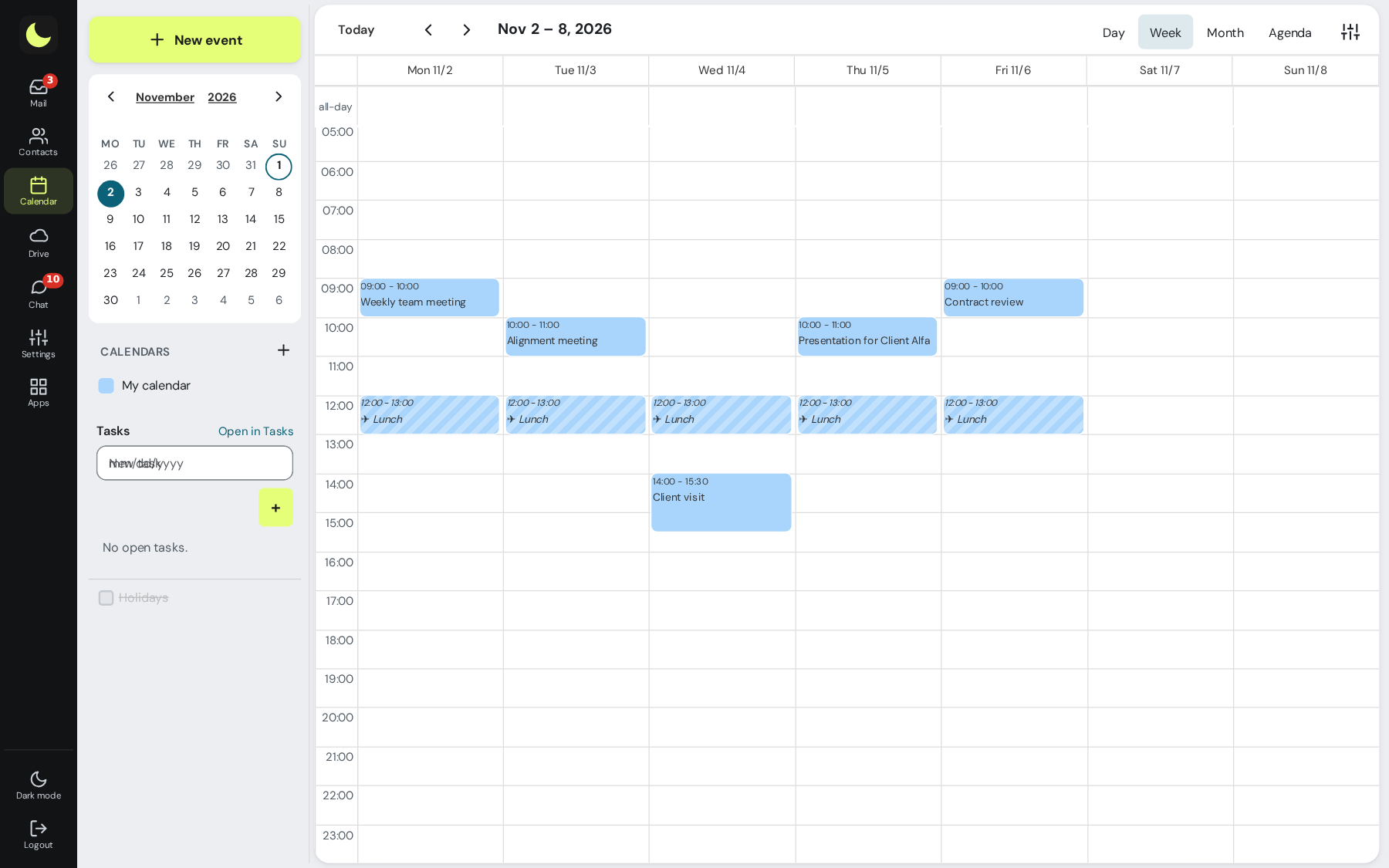
Sign in to webmail and click Calendar in the left bar. This week's events appear in the middle, and the list of calendars sits below the mini calendar.
Create the team calendar
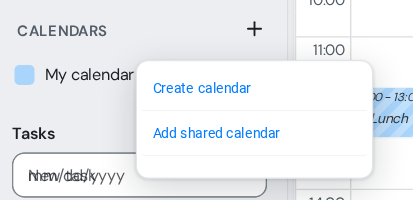
At the + next to Calendars, choose Create calendar. Give it a name everyone understands, like Sales team or Vacations and absences, and pick a color. It's worth having one calendar per topic instead of mixing everything into one.
Open sharing
Hover over the new calendar and click the pencil. In the edit view, open the Share calendar tab.
Add your colleagues and choose the permissions
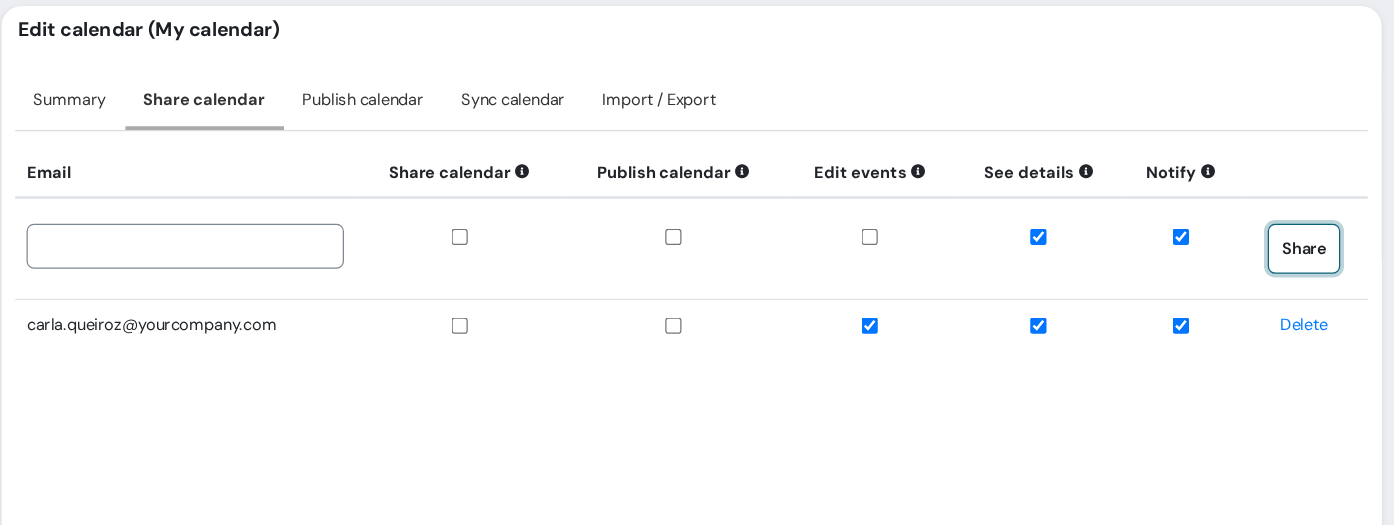
Type each colleague's email (only mailboxes on the same domain as yours). Check See details so they can see what's scheduled, and Edit events if they will also schedule and change appointments. With neither, they only see whether the time is free or busy.
Notify and save
With Notify checked, the colleague gets an email letting them know. Click Share and then Save.
The colleague adds the calendar
On their side, at the + next to Calendars, they choose Add shared calendar. The calendar appears in the list, marked as shared, and each person turns it on or off whenever they like. To have the calendar on your phone or in Outlook too, use Sync calendar in its edit view, as explained in the manual.
Who sees what: each colleague's permissions
Sharing is per person. An assistant can edit the management calendar while the rest of the team sees only when it's busy, all on the same calendar.
| Permission checked | What the colleague can do |
|---|---|
| None | Sees only whether the time is free or busy, with no title, location, or attendees. |
| See details | Sees the full events: title, time, location, and attendees. |
| Edit events | Creates, changes, and deletes events on the calendar. |
| Share calendar | Can give other colleagues access to the calendar. |
| Publish calendar | Can create the link so outside people can see the calendar. |
An event marked Private hides its details from people viewing your shared calendar, even with See details. Good for a doctor's appointment or personal matter in the middle of the day.
Ready-made examples
Four calendars from an example company, with the people and permissions of each one, as they appear in webmail.
Sales: one edits, the other just follows
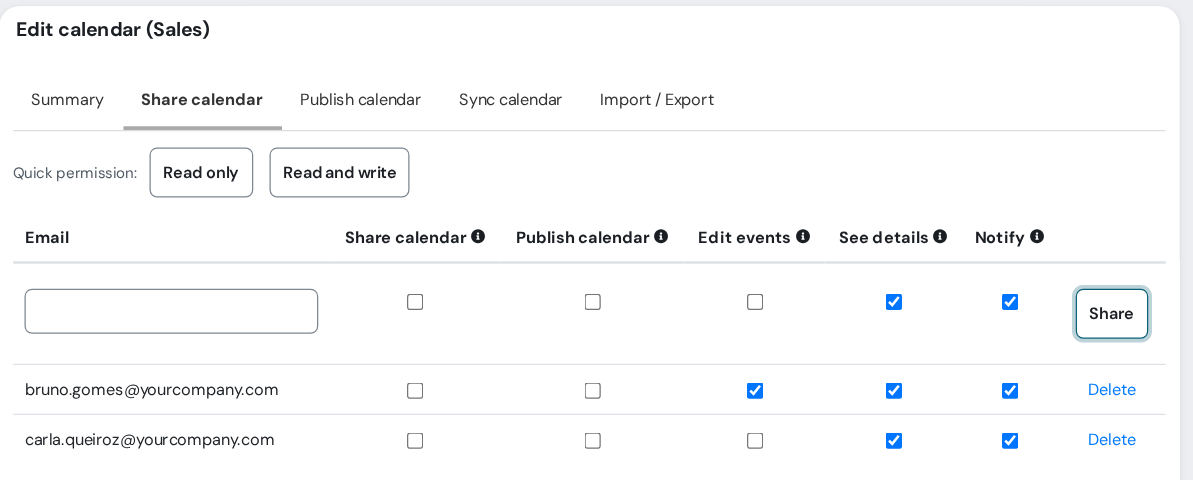
Ana creates the Sales calendar for the team's visits and meetings and shares it with two people.
- Bruno: Edit events and See details. He schedules the visits in the calendar.
- Carla: See details only. She follows the team's week without changing anything.
- An event marked as Private does not appear to either of them.
Executive team: the assistant edits, everyone else sees free and busy
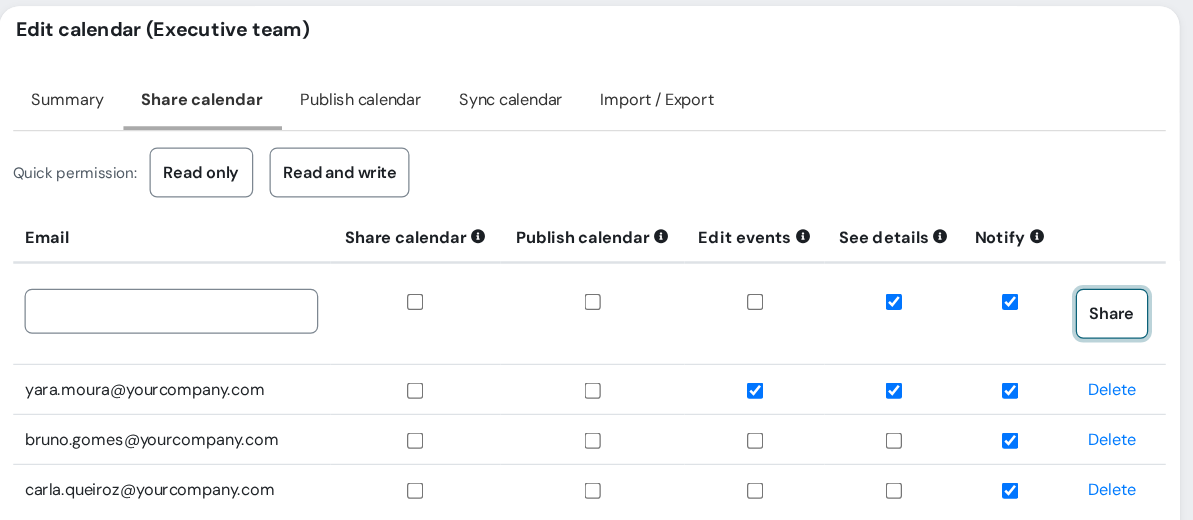
The executive team's calendar is in the assistant's hands, and the team only needs to know when the executives are busy.
- Yara (assistant): Edit events and See details. She schedules and changes appointments.
- Bruno and Carla: without See details. They see the times as Busy, with no title or location.
Vacations and absences: everyone edits
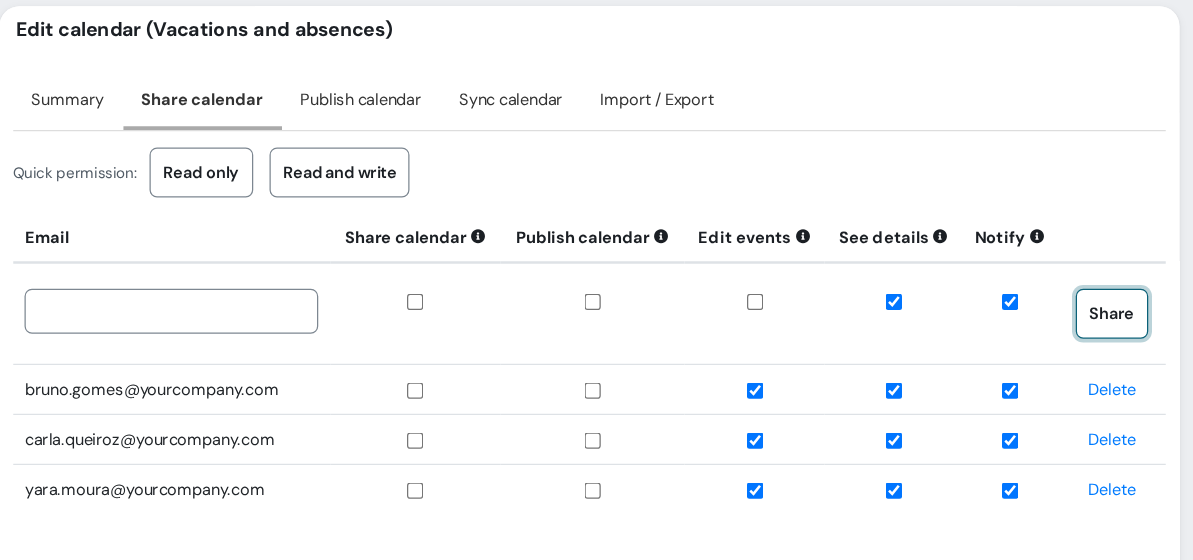
A calendar for the team to know who is away. Each person enters their own vacations and days off.
- Bruno, Carla and Yara: Edit events and See details.
- Before promising a deadline to a client, anyone can check the calendar.
Calendar for the client: availability only
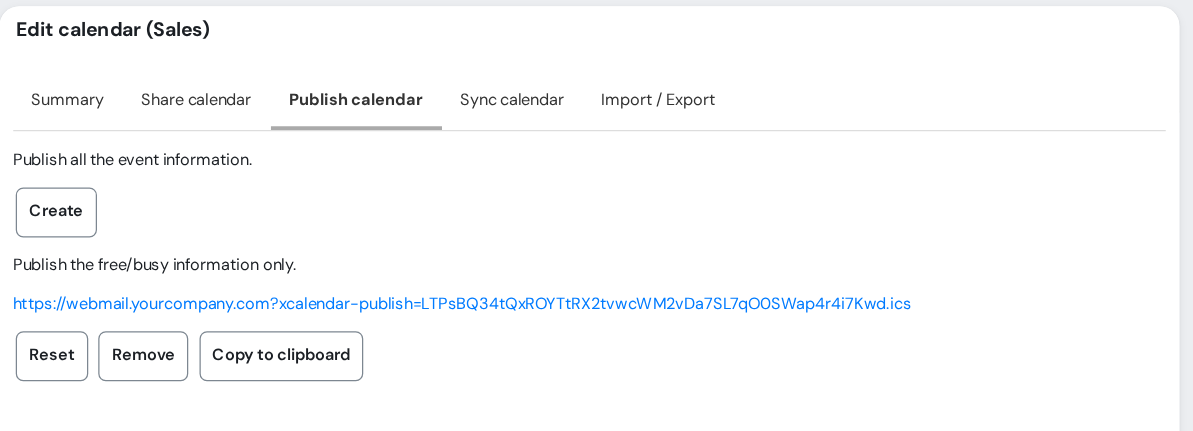
For people without a lua.email mailbox, the Publish calendar tab creates a link. With the free/busy option, the client sees only the busy blocks, with no title or location.
- Ana creates the link, sends it to the client and, whenever she wants, clicks Remove to turn it off.
- The link is a calendar file (.ics), the format calendar programs use to subscribe to a calendar by address.
Each step, what the person sees when they receive the calendar, and the most common questions are in the calendar chapter of the webmail manual.
Calendar ideas to share in your company
A shared calendar isn't only for meetings. These are the calendars that help most day to day.
The team calendar
Visits, deliveries, deadlines, and department meetings in one place. Everyone sees it, and a new hire understands the week in a minute.
Vacations and absences
Who is on vacation, off, or traveling. Before promising a deadline to a customer, the salesperson checks whether the technician will be there.
Meeting rooms and company car
One calendar for each room or vehicle, with Edit events for the team. Whoever needs it books the time, and the fighting over the room ends.
The management calendar with an assistant
The assistant edits, management approves, and the rest of the team sees only when the director is busy.
On-call and shift schedules
Who works Saturday, who is on call on the holiday. Everyone checks their own schedule without having to ask.
Time slots for customers
With Publish calendar set to free/busy only, the client sees by a link when the team is busy, without seeing what is scheduled.
Coming from Google Calendar or Outlook?
You don't need to retype anything. Export your old calendar to an .ics file (Google Calendar and Outlook export in that format) and, in the new calendar's edit view, use Import / Export, Import from file. Events come in with date, time, and recurrence.
Invitations that arrive by email, from customers who use other calendars, become an event with one click, and your reply goes back to whoever invited you. When you switch providers, our team also brings your calendars along.
See who is free before you invite
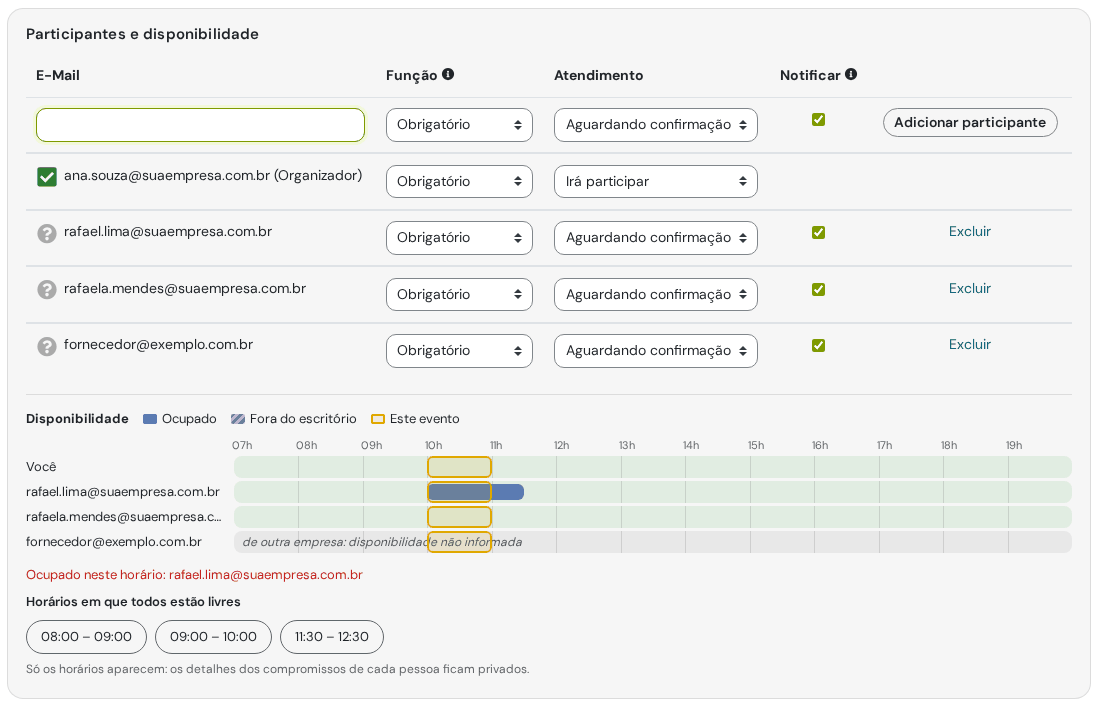
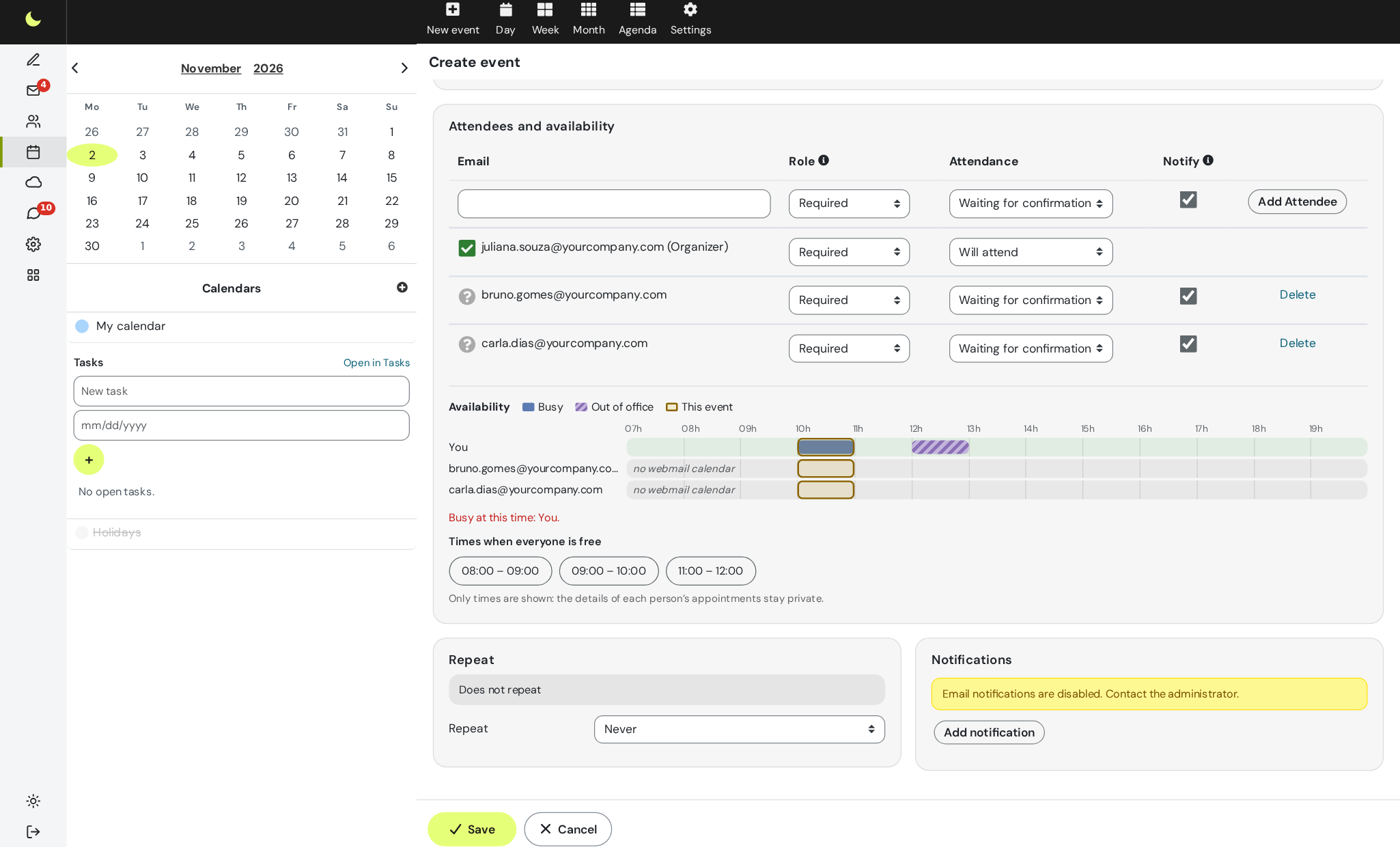
When you invite colleagues from the same domain, the Availability board loads on its own and shows, hour by hour, who is free or busy. If someone is busy at the event time, webmail tells you who and suggests up to three times when everyone is free.
Click one of the times and the event moves to it, with the same duration. People outside the company show up as "availability not provided". Only the times appear: the details of each person's appointments stay private.
Want your team's calendar working like this?
The shared calendar comes with all lua.email plans, from R$ 8.90 per mailbox. Signup is online, and we help set up your team's calendars.
Chat on WhatsApp See pricingPrefer that our team contacts you? Leave your contact details
Good to know
- Publish calendar creates a link so outside people can see the calendar, with all the details or only availability.
- Showing as Out of office stripes lunch, an appointment, or a trip on your colleagues' calendars.
- Recurring events: every week, every 10th, every first Monday of the month.
- A pop-up reminder in webmail or by email. Every new event already comes with one 10 minutes before.
- With lua Colabora, turn on Online meeting and the video call link is added to the event.
- With lua Colabora, the Create meeting minutes button creates the minutes document in Drive, with the attendees and the event agenda. See how it works.
- Import and export in .ics, to bring in a calendar from another service.
How companies use it
Everyday situations at small and midsize companies. The names and data are fictional.
Scheduling a meeting with a supplier and two colleagues
Situation. You need a time when your colleagues are free, and an outside supplier will join.
What the person does. Creates the event, types in the attendees' addresses, and opens the availability board right there on the event card.
Result. Webmail shows who is busy and suggests the times when everyone at the company is free. People from another company show up as "availability not provided", and the details of each colleague's appointments stay private.
Questions about shared calendars
Can I share the calendar with people outside the company?
To view and edit, sharing is only with mailboxes on the same domain as yours. For outside people, use Publish calendar: it creates a link with all the details or only availability, free or busy.
What's the difference between sharing and publishing?
Sharing gives colleagues access, each with their own permissions, and the calendar appears in their list. Publishing creates a read-only link for anyone, with no login, with everything or only availability.
Does the colleague need to accept the sharing?
They get a notice by email, if Notify is checked, and add the calendar at the + next to Calendars, under Add shared calendar. To take the calendar to their phone or Outlook, they use Sync calendar, as explained in the manual.
Can I share only availability?
Yes. Without the See details permission, the colleague sees only whether you're free or busy. Events marked Private also hide their details.
Does the calendar show up on my phone?
Yes. Through the Exchange account on iPhone and Android, or through CalDAV in other programs. Events created on the phone appear in webmail, and vice versa.
Do I need to open my email to know whether the guest is coming?
No. When the guest accepts, declines, or replies maybe, the response is added to the event on its own, in webmail, on the phone, and in Outlook.
Can I bring in a calendar from another service?
Yes. Export the old calendar as .ics and use Import from file in the calendar's edit view.
See also
Want this working at your company today?
lua.email costs from R$ 8.90 per mailbox, with webmail and lua Colabora on all plans. Signup is online and activation is automatic: pay by PIX and the account is ready in minutes for you to activate your domain. For questions, we answer on WhatsApp.
Subscribe now See pricing How we migratePrefer that our team contacts you? Leave your contact details